Wednesday, April 22, 2015

Arm Nginx With 'Keepalived' For High Availability (HA)

Prerequisite

After obtaining a general understanding and grasp on the basics of  Nginx deployed upon Vagrant environment, which could be found at this post, today I'm gonna enhance my load balancer with a tool named 'Keepalived' for the purpose of keeping it HA.

Keepalived is a routing software whose main goal is to provide simple and robust facilities for load balancing and high-availability to Linux system and Linux based infrastructures.

There're 4 vagrant envs, from node1(192.168.10.10) to node4(192.168.10.13) respectively. I intend to deploy Nginx and Keepalived on node1 and node2, whereas NodeJS resides in node3 and node4 supplying with web service.

The network interfaces on every node resembles:
[root@node1 vagrant]# ip addr
1: lo: <LOOPBACK,UP,LOWER_UP> mtu 16436 qdisc noqueue state UNKNOWN 
    link/loopback 00:00:00:00:00:00 brd 00:00:00:00:00:00
    inet 127.0.0.1/8 scope host lo
    inet6 ::1/128 scope host 
       valid_lft forever preferred_lft forever
2: eth0: <BROADCAST,MULTICAST,UP,LOWER_UP> mtu 1500 qdisc pfifo_fast state UP qlen 1000
    link/ether 08:00:27:ae:97:4f brd ff:ff:ff:ff:ff:ff
    inet 10.0.2.15/24 brd 10.0.2.255 scope global eth0
    inet6 fe80::a00:27ff:feae:974f/64 scope link 
       valid_lft forever preferred_lft forever
3: eth1: <BROADCAST,MULTICAST,UP,LOWER_UP> mtu 1500 qdisc pfifo_fast state UP qlen 1000
    link/ether 08:00:27:61:c2:b2 brd ff:ff:ff:ff:ff:ff
    inet 192.168.10.10/24 brd 192.168.10.255 scope global eth1
    inet6 fe80::a00:27ff:fe61:c2b2/64 scope link 
       valid_lft forever preferred_lft forever

As we can see, all our inner IP communications are on 'eth1' interface. Thus we will create our virtual IP on 'eth1'.

Install Keepalived

It's quite easy to deploy it on my vagrant env (CentOS), `yum install keepalived` will do all the jobs for u.

Vim '/etc/keepalived/keepalived.conf' to configure Keepalived for both node1 and node2. All is the same BUT the 'priority' parameter: setting to 101 and 100 respectively.
vrrp_instance VI_1 {
        interface eth1
        state MASTER
        virtual_router_id 51
        priority 101
        authentication {
            auth_type PASS
            auth_pass Add-Your-Password-Here
        }
        virtual_ipaddress {
            192.168.10.100/24 dev eth1 label eth1:vi1
        }
}

In this way, we've set up a virtual interface 'eth1:vi1' with the IP address 192.168.10.100.

Start Keepalived by issuing command `/etc/init.d/keepalived start` on both nodes. We should see that there's a multiple IP address configured on 'eth1' interface via command `ip addr` on the node which starts Keepalived first:
[root@node2 conf.d]# ip addr
1: lo: <LOOPBACK,UP,LOWER_UP> mtu 16436 qdisc noqueue state UNKNOWN 
    link/loopback 00:00:00:00:00:00 brd 00:00:00:00:00:00
    inet 127.0.0.1/8 scope host lo
    inet6 ::1/128 scope host 
       valid_lft forever preferred_lft forever
2: eth0: <BROADCAST,MULTICAST,UP,LOWER_UP> mtu 1500 qdisc pfifo_fast state UP qlen 1000
    link/ether 08:00:27:ae:97:4f brd ff:ff:ff:ff:ff:ff
    inet 10.0.2.15/24 brd 10.0.2.255 scope global eth0
    inet6 fe80::a00:27ff:feae:974f/64 scope link 
       valid_lft forever preferred_lft forever
3: eth1: <BROADCAST,MULTICAST,UP,LOWER_UP> mtu 1500 qdisc pfifo_fast state UP qlen 1000
    link/ether 08:00:27:3d:42:e0 brd ff:ff:ff:ff:ff:ff
    inet 192.168.10.11/24 brd 192.168.10.255 scope global eth1
    inet 192.168.10.100/24 scope global secondary eth1:vi1
    inet6 fe80::a00:27ff:fe3d:42e0/64 scope link 
       valid_lft forever preferred_lft forever

In my case, it is node2 who currently is the master of Keepalived. When shutting down node2 from host machine with command `vagrant suspend node2`, we could see that this secondary IP address '192.168.10.100' switches to node1. At this time, we should be able to `ping 192.168.10.100` from any nodes successfully.

Combine With Nginx

Now it's time to take full advantage of Keepalived to avoid Nginx (our load balancer) from single point of failure (SPOF). `vim /etc/nginx/conf.d/virtual.conf` to revise Nginx configuration file:
upstream nodejs {
    server 192.168.10.12:1337;
    server 192.168.10.13:1337;
    keepalive 64;    # maintain a maximum of 64 idle connections to each upstream server
}

server {
    listen 80;
    server_name 192.168.10.100
                127.0.0.1;
    access_log /var/log/nginx/test.log;
    location / {
        proxy_set_header X-Real-IP $remote_addr;
        proxy_set_header X-Forwarded-For $proxy_add_x_forwarded_for;
        proxy_set_header Host  $http_host;
        proxy_set_header X-Nginx-Proxy true;
        proxy_set_header Connection "";
        proxy_pass      http://nodejs;

    }
}

In our 'server_name' parameter, we set both the Virtual IP set by Keepalived and localhost IP. The former one is for HA whereas the latter is for vagrant port forwarding.

Luanch Nginx service on both node1 and node2, meanwhile, run NodeJS on node3 and node4. Then we should be able to retrieve the web content on any nodes via command `curl http://192.168.10.100` as well as `curl http://127.0.0.1`. Shutting down either node1 or node2 will not affect any node retrieving web content via `curl http://192.168.10.100`.


Related Post:
1. Guide On Deploying Nginx And NodeJS Upon Vagrant On MAC


Reference:
1. keepalived Vagrant demo setup - GitHub
2. How to assign multiple IP addresses to one network interface on CentOS
3. Nginx - Server names


Friday, April 17, 2015

Install Maven Repository Upon Nexus

Recently, a centralized maven repository is required. Thus I'm embarking on installing a company-scoped Maven Repository these days, and it turns out to be quite easy :] Here's the main procedures.

Environment

CentOS 6.4
nexus 2.11.2-06
JDK 1.7.0_11


Procedure

Firstly, we have to install JDK. This is too piece-of-cake to elaborate here (you could google out bunch of tutorials).

After installing JDK, we could download the latest version of Nexus (NEXUS OSS TGZ) from its website. untar it and copy it to '/home/workspace' directory.

vim '$NEXUS_HOME/conf/nexus.properties' and change 'nexus-work' variable to the path where your repository files will all be resided in. This path should be created manually before Nexus is launched. Meanwhile, you could change the default 'application-host' and 'application-port' to whatever you prefer.

Then, we could simple use `$NEXUS_HOME/bin/nexus start/stop` to manipulate Nexus service.

When Nexus starting, we could access via URL 'http://10.100.7.162:8081/nexus/' (In my case, it is an inner ip of our company). The default admin user is "admin" and password is "admin123".

As for the URL, we should always append the ending '/', otherwise it would fail to resolve the webpage.

Now, we could upload our own maven project, which will act as a dependency in other projects, to Nexus. In pom.xml, add the following code:
<pluginRepositories>
    <pluginRepository>
        <id>nexus</id>
        <name>nexus</name>
        <url>http://10.100.7.162:8081/nexus/content/groups/public/</url>
        <releases><enabled>true</enabled></releases>
        <snapshots><enabled>true</enabled></snapshots>
    </pluginRepository>
</pluginRepositories>


<distributionManagement>
    <repository>
        <id>nexus-releases</id>
        <name>Nexus Releases Repository</name>
        <url>http://10.100.7.162:8081/nexus/content/repositories/releases/</url>
    </repository>
    <snapshotRepository>
        <id>nexus-snapshots</id>
        <name>Nexus SnapShots Repository</name>
        <url>http://10.100.7.162:8081/nexus/content/repositories/snapshots/</url>
    </snapshotRepository>
</distributionManagement>

Then, we should `vim ~/.m2/settings.xml` and add the following code for the purpose of authentication:
<servers>
  <server>
    <id>nexus-releases</id>
    <username>admin</username>
    <password>admin123</password>
  </server>
  <server>
    <id>nexus-snapshots</id>
    <username>admin</username>
    <password>admin123</password>
  </server>
</servers>


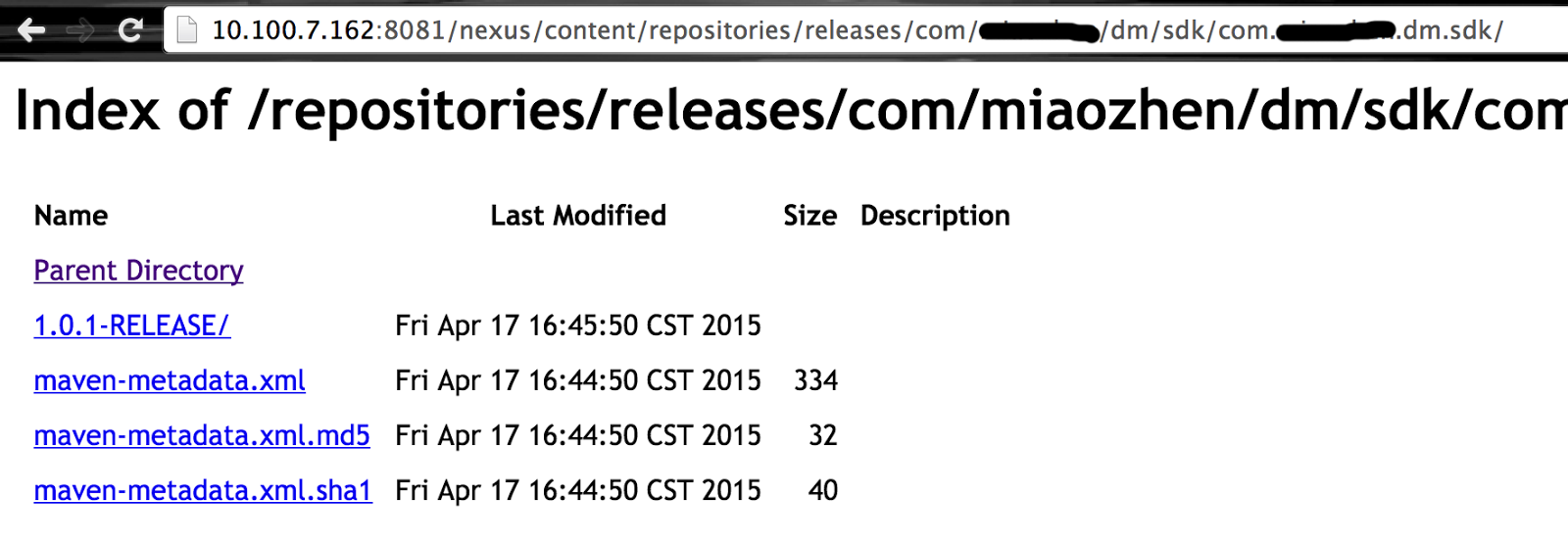
Finally, we `cd` to the project's root directory, execute `maven clean deploy`. When finished, we should see our project's jar file and auxiliary configuration files is uploaded to our Nexus server.


It's time to harvest and check on our private maven repository. Open a project which depends on the project we just uploaded to Nexus, open its pom.xml and add the following code to it:
<repositories>
    <repository>
        <id>nexus</id>
        <name>nexus</name>
        <url>http://10.100.7.162:8081/nexus/content/groups/public/</url>
        <releases>
            <enabled>true</enabled>
        </releases>
        <snapshots>
            <enabled>true</enabled>
        </snapshots>
    </repository>
</repositories>

<dependencies>
    <dependency>
        <groupId>com.XXX.dm.sdk</groupId>
        <artifactId>com.XXX.dm.sdk</artifactId>
        <version>1.0.1-RELEASE</version>
    </dependency>
</dependencies>

<pluginRepositories>
    <pluginRepository>
        <id>nexus</id>
        <name>nexus</name>
        <url>http://10.100.7.162:8081/nexus/content/groups/public/</url>
        <releases>
            <enabled>true</enabled>
        </releases>
        <snapshots>
            <enabled>true</enabled>
        </snapshots>
    </pluginRepository>
</pluginRepositories>


We could see that our private dependency is referenced correctly :]


Enhancement

#---1---# Beautify URL For Nexus Service
If we intend to resolve our content webpage to 'http://10.100.7.162/content/', without port specification as well as '/nexus/' heading part. we should set our '$NEXUS_HOME/conf/nexus.properties' like this:
# Jetty section
application-port=80
application-host=0.0.0.0
nexus-webapp=${bundleBasedir}/nexus
nexus-webapp-context-path=

# Nexus section
nexus-work=/home/data/nexus_repo
runtime=${bundleBasedir}/nexus/WEB-INF

In order to specify port to 80, we need to operate on Nexus as root user; And according to this post, put null in parameter 'nexus-webapp-context-path' would just do the trick removing the '/nexus/' heading.

#---2---# Increase Memory Of Nexus Service
We should increase the memory allocating to Nexus. This is well-explained in its official document.

epilogue

After running Nexus the first time, we should make some configurations before taking full advantage of it.

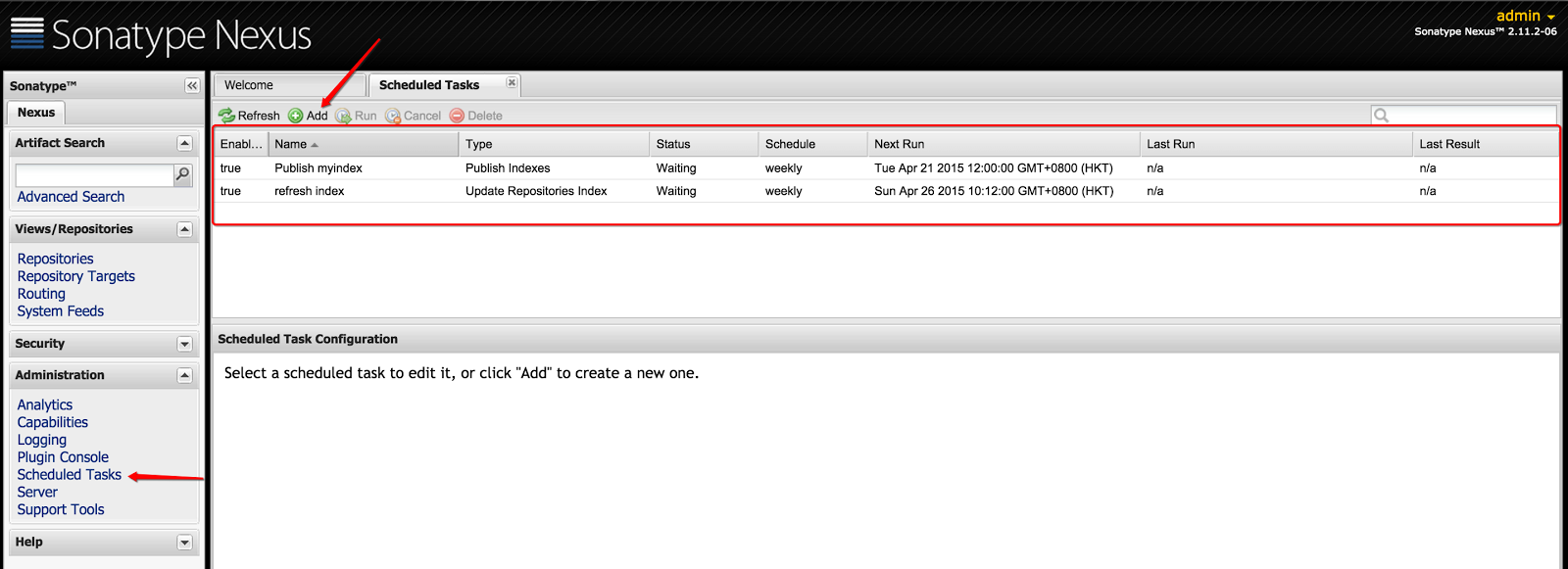
#---1---# Adding Scheduled Tasks
The first thing to do is to add two scheduled tasks, namely, updating repositories index and publish indexes, as depicted below. The function of these scheduled tasks is described here, mainly to update proxy repositories information:


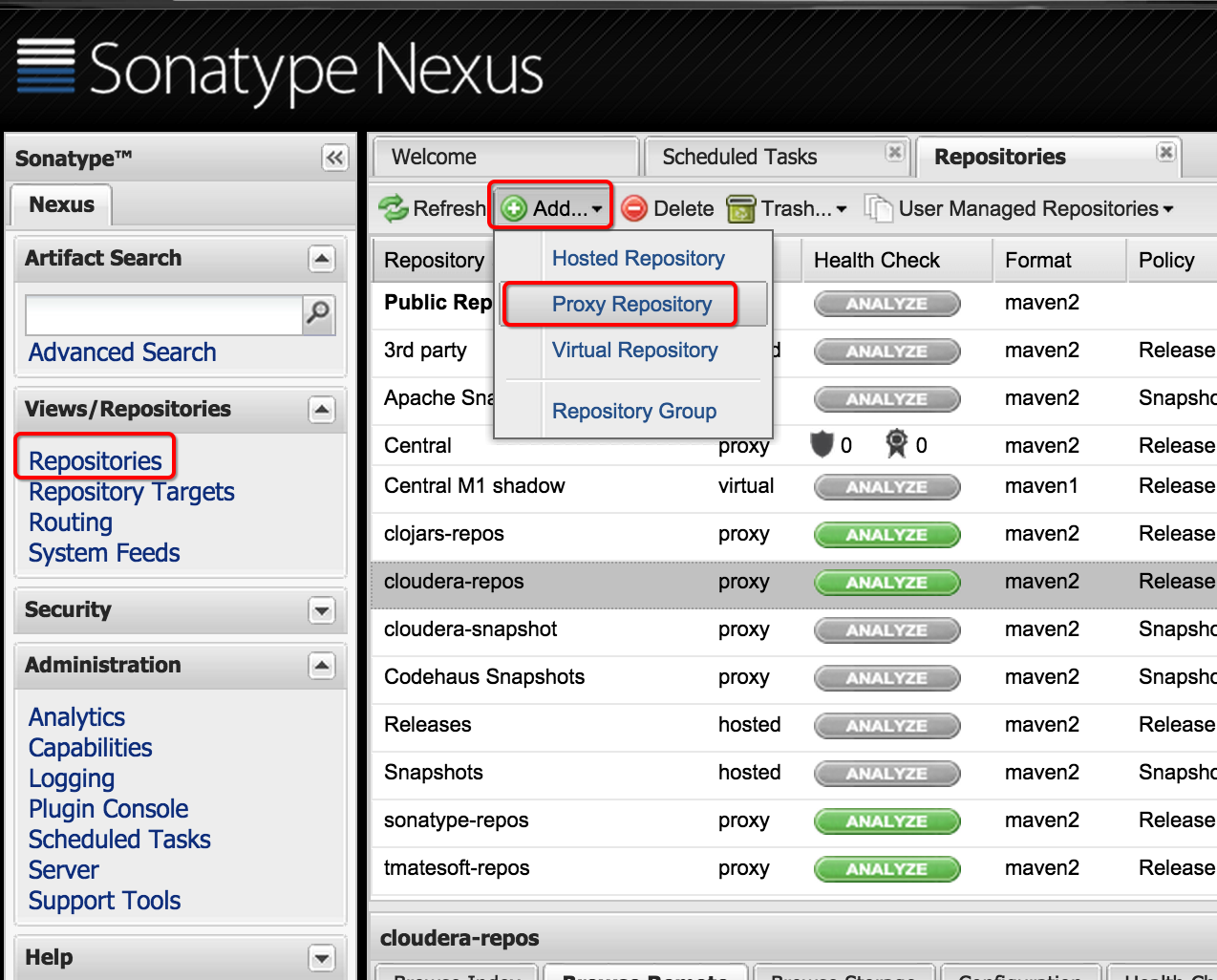
#---2---# Configuring Proxy Repositories
There are some commonly-used remote repositories which should be configured into our maven repository.

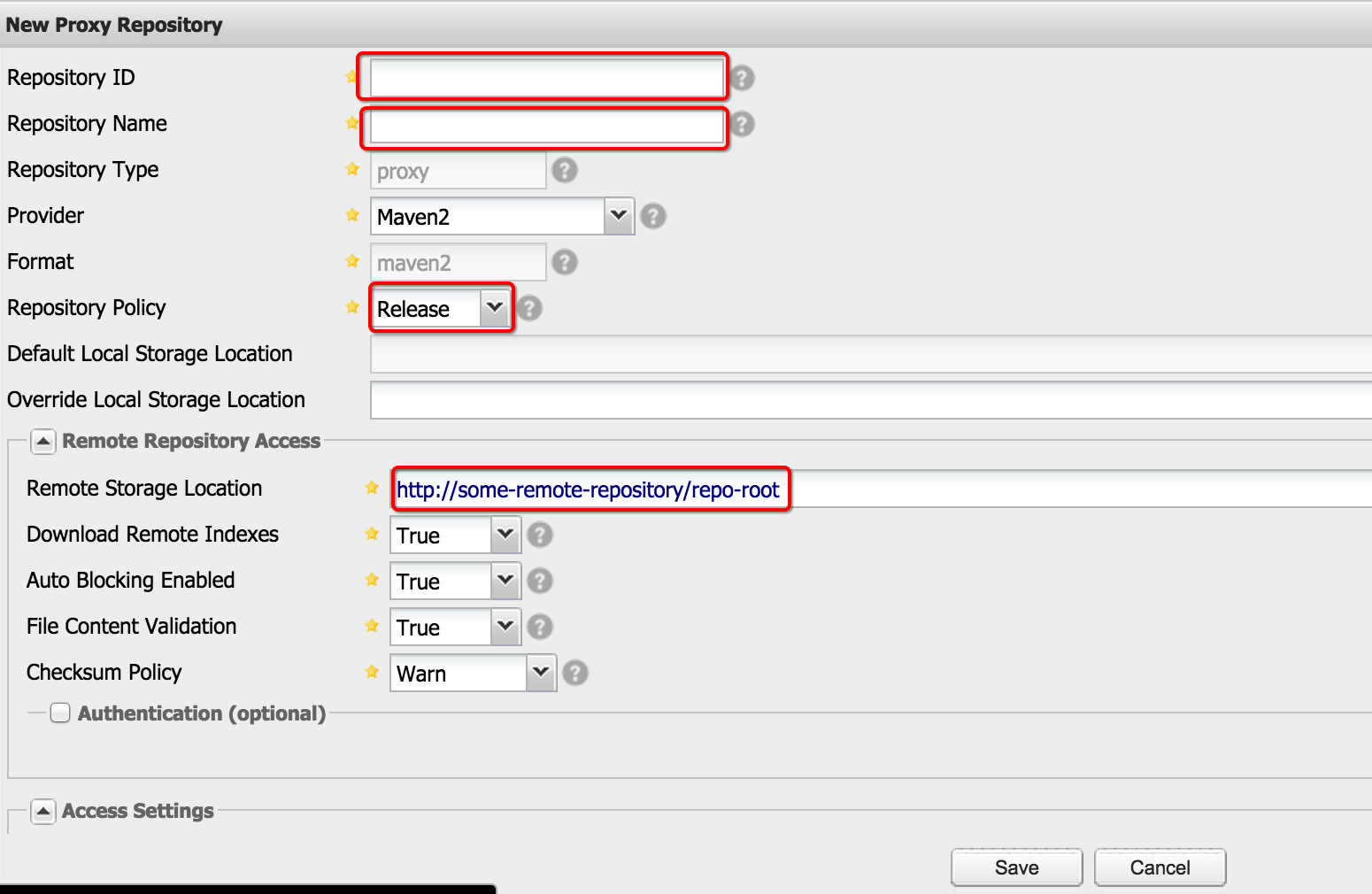
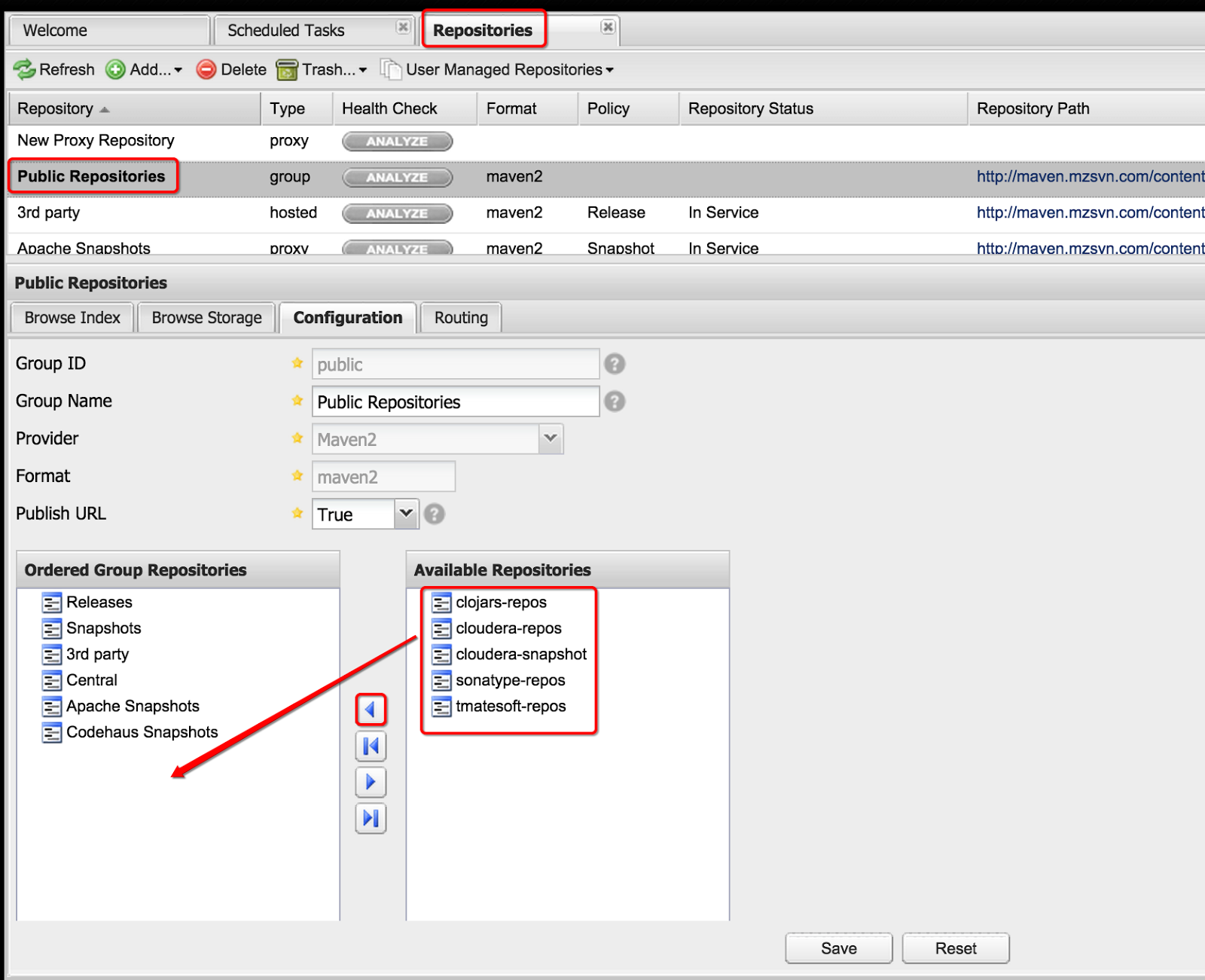
Firstly, we should add the proxy repository into our Repositories Module.


Next, append them into Public Repositories:


In this way, we could refer to almost all the common dependencies from our maven repository.


Reference:
1. Return code is: 401, ReasonPhrase:Unauthorized
2. Maven学习笔记(二、nexus仓库)
3. Maven学习笔记(三、maven配置nexus)
4. Linux 搭建Nexus


Thursday, April 9, 2015

NameNode Hangs After Startup

Phenomenon

Recently, namenodes in our Hadoop cluster hang frequently, with the phenomenon that HDFS command will stuck or SocketTimeout will be thrown. When checking on 'hadoop-hadoop-namenode.log', no valuable information is provided. But in log 'hadoop-hadoop-namenode.out', the following error is thrown:
Exception in thread "Socket Reader #1 for port 8020" java.lang.OutOfMemoryError: Java heap space
Exception in thread "org.apache.hadoop.hdfs.server.namenode.FSNamesystem$NameNodeResourceMonitor@5c5df228" java.lang.OutOfMemoryError: Java heap space

In the meantime, we could diagnose the process of NameNode via `jstat` command:
[hadoop@K1201 hadoop]$ jstat -gcutil 31686
  S0     S1     E      O      P     YGC     YGCT    FGC    FGCT     GCT   
  0.00   0.00 100.00 100.00  98.79     20   27.508    48  335.378  362.886

As we can see, Full GC Time (FGCT) is predominating the Total Time of GC (GCT), thus a lack of memory for NameNode is the culprit.

Solution

Apparently, namenode is complaining an OOM error. The way to increase heap space for namenode is in the configuration file '$HADOOP_HOME/etc/hadoop/hadoop-env.sh', where to put the following commands:
# The maximum amount of heap to use, in MB. Default is 1000.
export HADOOP_HEAPSIZE=20000
export HADOOP_NAMENODE_INIT_HEAPSIZE="15000"

Eventually, we should restart our namenode and check its current -Xmx (which stands for heap size) attribute via:
jinfo <namenode_PID> | grep -i xmx --color

We shall see that it has already changed to what we've set previously.

Alternatively, we could check memory status via HDFS monitor webpage as well:


Wednesday, April 8, 2015

Guide On Deploying Nginx And NodeJS Upon Vagrant On MAC

Today, I'm gonna deploy NodeJS, masking with Nginx at the front-end, upon Vagrant, which is lightweight, reproducible, and portable development environments based on virtual machine, on Mac OSX. So, let's get our feet wet!

Experimental Environment

1. Mac OSX 10.9
2. Vagrant 1.7.2
3. VirtualBox-4.3.14-95030-OSX
4. CentOS6.5.box
5. Nginx 1.6.2
6. NodeJS 0.12.2

Items from 2 to 4 can be downloaded from here, while the installation of Item[5] is at its official document, Item[6] at this site.

Install Vagrant And Deploy Nginx, NodeJS On Vagrant

Firstly, invoke the following prompt for preparation:
mkdir ~/vagrant
mkdir ~/vagrant/box
mkdir ~/vagrant/dev
mv ~/Download/centos6.5.box ~/vagrant/box

The `box` subdir is for our .box file, while `dev` subdir is for current "Vagrantfile" instance.

Now let's initial our first vagrant environment with commands as below:
vagrant box add centos ~/vagrant/box/centos6.5.box  # Load the centos6.5.box into VirtualBox
cd ~/vagrant/dev
vagrant init centos # Initial the above box, which will generate the 'Vagrantfile' file
vagrant up # Start up the vagrant environment corresponding to config in the 'Vagrantfile' file
vagrant ssh # ssh to the vagrant environment

In which, 'Vagrantfile' is the place where configurations resides, we'll see it later. `vagrant ssh` command is the abbreviation of `vagrant ssh default`, since we don't specify a name explicitly for current vagrant environment in 'Vagrantfile', it applies 'default' as its name.

Some relative and commonly-used vagrant commands are listed here for reference (we could simply invoke `vagrant` to check out elaborate information on sub-commands):
vagrant halt # Close current vagrant env and save data and cache on disk
vagrant destroy # Close current vagrant env and dispose all the data. The next time when calling `vagrant up`, it will initial vagrant upon 'Vagrantfile' from scratch
vagrant global-status # list current vagrant envs status

After logging in the vagrant environment, we could install Nginx and NodeJS as illustrated in the aforementioned URL.  As for Nginx, root user is needed. For vagrant env, the default root's password is 'vagrant'.

Implement HelloWorld Upon NodeJS And Access From Host's Browser

In the 'default' vagrant env, `vim ~/helloworld.js`:
var http = require('http');
http.createServer(function (req, res) {
  console.log(req.url);
  res.writeHead(200, {'Content-Type': 'text/plain', 'Content-Type': 'application/json;charset=utf-8'});
  res.end('Hello Jason!');
}).listen(1337, "0.0.0.0");
console.log('Server running at http://0.0.0.0:1337/');

In which, we should listen to '0.0.0.0' rather than '127.0.0.1' provided that we intend to access it from our host's browser later on. The reason is well-explained here (Empty reply from server - can't connect to vagrant vm w/port forwarding).

After editing this .js file, we could fire it up via `node helloworld.js`. Next, open a new prompt window, login to the same vagrant env and execute `curl 127.0.0.1:1337`, we should see the html content returning from NodeJS server.

However, we cannot access this webpage through host's browser since the vagrant env and host resides in totally different IP segments. This could be solved by port forwarding technique, which is well-illustrated in the official document.

In our scenario, we simply add the following configuration in 'Vagrantfile' file.
config.vm.network :forwarded_port, host: 4567, guest: 1337

In this way, we could access at http://127.0.0.1:4567 from host machine to the NodeJS server in vagrant env.

Mask NodeJS With Nginx

Now, we are going to mask NodeJS with Nginx, though there's only one NodeJS server at this time.

Configuration of Nginx is as follows, via `vim /etc/nginx/conf.d/virtual.conf`:
upstream nodejs {
    server 127.0.0.1:1337;
    keepalive 64;
}

server {
    listen 80;
    server_name 127.0.0.1;
    access_log /var/log/nginx/test.log;
    location / {
        proxy_set_header X-Real-IP $remote_addr;
        proxy_set_header X-Forwarded-For $proxy_add_x_forwarded_for;
        proxy_set_header Host  $http_host;
        proxy_set_header X-Nginx-Proxy true;
        proxy_set_header Connection "";
        proxy_pass      http://nodejs;
    }
}

By masking with Nginx, we should access http://127.0.0.1:80, then Nginx will assign our http request to its upstream (In current scenario, it is 127.0.0.1:1337). Start nginx via command `service nginx start` in root user.

Meanwhile, we should change our 'Vagrantfile' file so as to 'port forwarding' to 127.0.0.1:80.
config.vm.network :forwarded_port, host: 4567, guest: 80

Restart vagrant env by `vagrant reload`, login to vagrant env starting Nginx as well as NodeJS server. Eventually, we should be able to access NodeJS server at http://127.0.0.1:4567 from host.

Create Box From Current Vagrant Environment

To obtain a snapshot of current vagrant env, in which Nginx and NodeJS have installed, we could create a .box file from current vagrant env via command:
vagrant package --output /yourfolder/OUTPUT_BOX_NAME.box

Create Multiple Vagrant Environments In A Single Vagrantfile

After all the work above, we are ready to create multiple vagrant envs in a single 'Vagrantfile' file, which looks as follows:
Vagrant.configure(2) do |config|
  #config.vm.box = "jason_web"
  #config.vm.network :forwarded_port, host: 4567, guest: 80
  
  config.vm.define :node1 do |node1|
      node1.vm.box = "jason_web"
      node1.vm.host_name = "node1"
   node1.vm.network :forwarded_port, host: 4567, guest: 80
      node1.vm.network "private_network", ip:"192.168.10.10"
      config.vm.provider :virtualbox do |vb|
          vb.customize ["modifyvm", :id, "--memory", "1024"]
          vb.customize ["modifyvm", :id, "--cpus", "2"]
      end 
  end 
  
  config.vm.define :node2 do |node2|
      node2.vm.box = "jason_web"
      node2.vm.host_name = "node2"
      node2.vm.network "private_network", ip:"192.168.10.11"
      config.vm.provider :virtualbox do |vb|
          vb.customize ["modifyvm", :id, "--memory", "512"]
          vb.customize ["modifyvm", :id, "--cpus", "2"]
      end 
  end 
  
  config.vm.define :node3 do |node3|
      node3.vm.box = "jason_web"
      node3.vm.host_name = "node3"
      node3.vm.network "private_network", ip:"192.168.10.12"
      config.vm.provider :virtualbox do |vb|
          vb.customize ["modifyvm", :id, "--memory", "512"]
          vb.customize ["modifyvm", :id, "--cpus", "2"]
      end 
  end 
  
  config.vm.define :node4 do |node4|
      node4.vm.box = "jason_web"
      node4.vm.host_name = "node4"
      node4.vm.network "private_network", ip:"192.168.10.13"
      config.vm.provider :virtualbox do |vb|
          vb.customize ["modifyvm", :id, "--memory", "512"]
          vb.customize ["modifyvm", :id, "--cpus", "2"]
      end 
  end 

The configuration items are all self-explained well in the above configuration. The obvious difference between 'node1' and the others is that it has a port forwarding setting for the purpose of accessing Nginx service running at 'node1'.

If we intend to ssh from nodeA to nodeB, the default password for ssh is 'vagrant', which is the same as the root's password.

Login 'node1' and reconfigure the Nginx 'virtual.conf' as follows, then start it up!
upstream nodejs {
    server 192.168.10.10:1337;
    server 192.168.10.11:1337;
    server 192.168.10.12:1337;
    server 192.168.10.13:1337;
    keepalive 64;
}

server {
    listen 80;
    server_name 127.0.0.1;
    access_log /var/log/nginx/test.log;
    location / {
        proxy_set_header X-Real-IP $remote_addr;
        proxy_set_header X-Forwarded-For $proxy_add_x_forwarded_for;
        proxy_set_header Host  $http_host;
        proxy_set_header X-Nginx-Proxy true;
        proxy_set_header Connection "";
        proxy_pass      http://nodejs;
    }
}

Eventually, login to each node and start NodeJS server respectively. At this time, we should be able to access Nginx service from http://127.0.0.1:4567 on host machine, and http requests is distributed to different NodeJS servers.

Performance Benchmark Current Webserver

We could use Apache Benchmark toolkit to test our distributed webserver, whose command resembles:
ab -k -c 350 -n 20000 http://127.0.0.1:4567/

'-c' means 'concurrent', -k for 'keepalive', while '-n' stands for 'total request amount'. For more detailed guide on how to take advantage of it to the maximum, we could refer to this post.

For Mac OSX, there's a bug on `ab` command, which could be patched illustrating in this link.


Reference
1. Nginx Tutorial - Proxy to Express Application, Load Balancer, Static Cache Files
2. mac下vagrant 的使用入门
3. VAGRANTDOCS - GETTING STARTED
4. Removing list of vms in vagrant cache
5. How to run node.js Web Server on nginx in Centos 6.4
6. NodeJs的安装 Hello World!


Tuesday, January 27, 2015

Deploy Tez Based On Hadoop-2.2.0

Tez is a computing engine parallel to MapReduce, whose target is to build an application framework which allows for a complex directed-acyclic-graph (DAG) of tasks for processing data. It is currently built atop Apache Hadoop YARN.

The most significant advantage of Tez against MapReduce is that Disk IO will be saved when there's multiple MR tasks which are to be executed in series in Hive. This in-memory computing mechanism is somewhat like Spark.

Now, the procedure of deploying Tez on Hadoop-2.2.0 is shown as below.

--CAVEAT--
1. The Official Deploy Instruction For Tez is absolutely suitable for all release versions of Tez, except the incubating version. Thus, the following deploy instruction is not exactly the same as the official one. (Supplementary may sound more appropriate)
2. In the official document, it says that we have to change hadoop.version to our currently-using version, which is not true after verifying. For instance, there will be ERRORs when execute `mvn clean package ...` provided we change hadoop.version from 2.6.0 to 2.2.0 forcibly in Tez-0.6.0. Consequently, we have to use tez-0.4.1-incubating whose default setting of hadoop.version is 2.2.0.

Ok, now let's get back on track!

Firstly, we have to install JDK6 or later, Maven 3 or later and Protocol Buffers (protoc compiler) 2.5 or later as prerequisite, whose procedure is omitted.

Retrieve tez-0.4.1-incubating from official website and decompress it:
wget http://archive.apache.org/dist/incubator/tez/tez-0.4.1-incubating/tez-0.4.1-incubating-src.tar.gz
tar xzf tez-0.4.1-incubating-src.tar.gz

Check hadoop.version, protobuf.version and 'hardcode' protoc.path as is shown below:
<properties>
    <maven.test.redirectTestOutputToFile>true</maven.test.redirectTestOutputToFile>
    <clover.license>${user.home}/clover.license</clover.license>
    <hadoop.version>2.2.0</hadoop.version>
    <jetty.version>7.6.10.v20130312</jetty.version>
    <distMgmtSnapshotsId>apache.snapshots.https</distMgmtSnapshotsId>
    <distMgmtSnapshotsName>Apache Development Snapshot Repository</distMgmtSnapshotsName>
    <distMgmtSnapshotsUrl>https://repository.apache.org/content/repositories/snapshots</distMgmtSnapshotsUrl>
    <distMgmtStagingId>apache.staging.https</distMgmtStagingId>
    <distMgmtStagingName>Apache Release Distribution Repository</distMgmtStagingName>
    <distMgmtStagingUrl>https://repository.apache.org/service/local/staging/deploy/maven2</distMgmtStagingUrl>
    <failIfNoTests>false</failIfNoTests>
    <protobuf.version>2.5.0</protobuf.version>
    <protoc.path>/usr/local/bin/protoc</protoc.path>
    <project.build.sourceEncoding>UTF-8</project.build.sourceEncoding>
    <scm.url>scm:git:https://git-wip-us.apache.org/repos/asf/incubator-tez.git</scm.url>
  </properties>

Execute maven package command.
mvn clean package -DskipTests=true -Dmaven.javadoc.skip=true

After building, we could find all the compiled jar files in '$TEZ_HOME/tez-dist/target/tez-0.4.1-incubating-full/tez-0.4.1-incubating-full/', assuming which as environment variable $TEZ_JARS.

Find a HDFS path, in which $TEZ_JARS will be uploaded. In my case, '/user/supertool/zhudi/tez-dist' is applied.
hadoop fs -copyFromLocal $TEZ_JARS /user/supertool/zhudi/tez-dist

Create a tez-site.xml in '$HADOOP_HOME/etc/hadoop', add the following content which refers to the HDFS path. Be sure that the HDFS path is in full-path format, that is to say, with 'hdfs://ns1' header.
 <configuration>
     <property>
         <name>tez.lib.uris</name>
        <value>hdfs://ns1/user/supertool/zhudi/tez-dist/tez-0.4.1-incubating-full,hdfs://ns1/user/supertool/zhudi/tez-dist/tez-0.4.1-incubating-full/lib</value>
     </property>
 </configuration>

Eventually, add the following content to ~/.bashrc and `source ~/.bashrc`.
 export TEZ_CONF_DIR=/home/workspace/tez-0.4.1-incubating-src
 export TEZ_JARS=/home/workspace/tez-0.4.1-incubating-src/tez-dist/target/tez-0.4.1-incubating-full/tez-0.4.1-incubating-full
 export HADOOP_CLASSPATH=${TEZ_CONF_DIR}:${TEZ_JARS}/*:${TEZ_JARS}/lib/*

We could run the tez-examples.jar, which is a MapReduce task, for testing:
hadoop jar /home/workspace/tez-0.4.1-incubating-src/tez-mapreduce-examples/target/tez-mapreduce-examples-0.4.1-incubating.jar orderedwordcount /user/supertool/zhudi/mrTest/input /user/supertool/zhudi/mrTest/output

For hive, simply add the following command before executing HQL.
set hive.execution.engine=tez;

If 'hive.input.format' need to be specified when applying MapReduce Computing Engine, which is default, remember to append the following command when switching to Tez:
set hive.input.format=com.XXX.RuntimeCombineHiveInputFormat;
set hive.tez.input.format=com.XXX.RuntimeCombineHiveInputFormat;

Likewise, if 'mapred.job.queue.name' need to be specified, replace it with 'tez.queue.name'.


One last thing: Only the gateway node, which is going to submit tasks using Tez, in Hadoop cluster needs to be deployed.


Possible ERROR #1:
When using custom UDF in hive/tez, there are times that the exactly same task failed whereas in other times, it succeeded. After looking through the detailed log retrieved by `yarn logs -applicationId <app_id>`, the following ERROR could be found:
java.lang.NoSuchMethodError: org.apache.commons.collections.CollectionUtils.isEmpty(Ljava/util/Collection;)Z
at com.XXX.inputformat.hive.SplitInfo.mergeSplitFiles(SplitInfo.java:86)
at com.XXX.inputformat.hive.RuntimeCombineHiveInputFormat.getSplits(RuntimeCombineHiveInputFormat.java:105)
at org.apache.tez.mapreduce.hadoop.MRHelpers.generateOldSplits(MRHelpers.java:263)
at org.apache.tez.mapreduce.hadoop.MRHelpers.generateInputSplitsToMem(MRHelpers.java:379)
at org.apache.tez.mapreduce.common.MRInputAMSplitGenerator.initialize(MRInputAMSplitGenerator.java:161)
at org.apache.tez.dag.app.dag.RootInputInitializerRunner$InputInitializerCallable$1.run(RootInputInitializerRunner.java:154)
at org.apache.tez.dag.app.dag.RootInputInitializerRunner$InputInitializerCallable$1.run(RootInputInitializerRunner.java:146)

Then I looked into $HADOOP_HOME/share/hadoop/common/lib/ and $HIVE_HOME/lib, finding that the version of commons-collections.jar is 3.2.1 and 3.1 respectively. Then I found out that there is no 'org.apache.commons.collections.CollectionUtils.isEmpty' method in version 3.1. It is obvious that the culprit is maven dependency confliction. Thus, I replaced the 3.1 with 3.2.1 and all things just worked out fine.


References:
1. Official Deploy Instruction For Tez
2. Deploy Tez on Hadoop 2.2.0 - CSDN


© 2014-2017 jason4zhu.blogspot.com All Rights Reserved 
If transfering, please annotate the origin: Jason4Zhu

Monday, January 26, 2015

Notes: Build, Deploy Spark 1.2.0 And Run Spark-Example In Intellij Idea

Build Reference:
building-spark-1-2-0 - Official Document

Run Spark On Yarn Reference:
running-spark-1-2-0-on-yarn - Official Document

Tutorial:
quick-start - Spark
Spark Programming Guide - Spark
Spark SQL Programming Guide - Spark SQL
Spark RDD API Examples - Zhen He

Environment:
Spark-1.2.0
Hadoop-2.2.0
Hive-0.13.0
Scala-2.10.4


Configure Intellij Idea for Spark Application (SBT version)
Before preparing for Spark environment in Intellij Idea, we should firstly make it possible to write scala in it. In fact, it is much easier than we thought since there is a scala plugin which is available at Plugins Manager: Go to preferences(⌘+,) --> plugins --> install JetBrain plugins --> scala.

After restarting Intellij Idea, we could simply create a SBT scala project by "File --> New Project --> scala --> SBT"


Then, mkdir src/main/java to the root of the project path. Create a new file named 'SimpleApp.scala', whose content is as follows:
/* SimpleApp.scala */

import _root_.org.apache.spark.SparkConf
import _root_.org.apache.spark.SparkContext
import org.apache.spark.SparkContext
import org.apache.spark.SparkContext._
import org.apache.spark.SparkConf

object SimpleApp {
  def main(args: Array[String]) {
    val logFile = "/user/hadoop/poem" // Should be some file on your system
    val conf = new SparkConf().setAppName("Simple Application")
    val sc = new SparkContext(conf)
    val logData = sc.textFile(logFile, 2).cache()
    val numAs = logData.filter(line => line.contains("a")).count()
    val numBs = logData.filter(line => line.contains("b")).count()
    println("Lines with a: %s, Lines with b: %s".format(numAs, numBs))
  }
}

Apparently, it is a simple Spark Application.

Then we should configure the project library and module so as to make it compile correctly. Open Project Structure(⌘+;). In Modules column, select currently-used Java JDK; whereas in Libraries column, add spark jar file which could be retrieved from online deployed Spark path: '$SPARK_HOME/assembly/target/scala-2.10/spark-assembly-1.2.0-hadoop2.2.0.jar'. At this very moment, a bug of Intellij Idea could appear when importing this .jar file with prompt 'IDEA cannot determine what kind of files the chosen items contain. Choose the appropriate categories from the list.'. Have a look at Possible Error #4 for detailed information.


At this time, no compile error should be found in SimpleApp.scala file.

Since our Spark environment is online, thus I implemented a script in order to upload my Spark application to online node and build it there.
#!/bin/bash

if [ "$#" -ne 1 ]; then
  echo "One argument (Spark_Project_Name) is needed." >&2
  exit 1
fi

rsync -r --delete --exclude=target /Users/jasonzhu/IdeaProjects/$1 hadoop@d80.hide.cn:/home/hadoop/zhudi
ssh hadoop@d80.hide.cn "source /etc/profile; cd /home/hadoop/zhudi/$1; ls -l; sbt package;"

After executing this script and ssh to the online machine, execute the following command to launch the SimpleApp:
spark-submit --class "SimpleApp" --master yarn-cluster --num-executors 3 simple-project_2.11-1.0.jar

Whose result could be seen by:
yarn logs -applicationId application_1421455790417_19073 | grep "Lines with a"


Configure Intellij Idea for Spark Application (non-SBT version)
Still, install scala plugin in Intellij Idea following the aforementioned procedure.

create a scala project by "File --> New Project --> scala --> non-SBT"

Import scala and Spark jar as above. Create a package, a SimpleApp.scala file in that package respectively, in which put the above code in it.

Next, we should specify the way this project assembles when building it. go to Project Structure --> Artifacts --> Add. Configure it as follows:


After configuring, Make Project(⌘+F9). Then we could find the jar file in the above output directory.

Copy the jar file to the online server, launch it via command:
spark-submit --class "com.miaozhen.etl.region.distribution.SimpleApp" --master yarn-cluster --num-executors 3 scala.test.jar


One More Step: Integrate Maven With Scala In IDEA
Firstly, we should create a simple maven project in IDEA. Then we add Scala Facet in Project Structure(⌘+;) as follows:

At this time, no Scala compiler is specified. Thus we have to import scala-compiler in Libraries. Select Add->Java, the select all the .jar files in $SCALA_HOME/lib directory, then click OK.


After which, we should have imported scala-compiler Library as a whole:

We could then specify Scala Compiler in Scala Facet interface:

Add the following dependency in pom.xml:
<dependencies>
    <dependency>
        <groupId>org.apache.commons</groupId>
        <artifactId>commons-lang3</artifactId>
        <version>3.3.2</version>
    </dependency>
</dependencies>

<build>
    <plugins>
        <plugin>
            <artifactId>maven-compiler-plugin</artifactId>
            <configuration>
                <target>1.7</target>
                <source>1.7</source>
                <encoding>UTF-8</encoding>
            </configuration>
        </plugin>
        <plugin>
            <artifactId>maven-assembly-plugin</artifactId>

            <configuration>
                <appendAssemblyId>true</appendAssemblyId>
                <descriptorRefs>
                    <descriptorRef>jar-with-dependencies</descriptorRef>
                </descriptorRefs>
            </configuration>
            <executions>
                <execution>
                    <id>make-assembly</id>
                    <phase>package</phase>
                    <goals>
                        <goal>single</goal>
                    </goals>
                </execution>
            </executions>
        </plugin>

        <plugin>
            <groupId>net.alchim31.maven</groupId>
            <artifactId>scala-maven-plugin</artifactId>
            <version>3.1.6</version>
            <executions>
                <execution>
                    <id>compile-scala</id>
                    <phase>compile</phase>
                    <goals>
                        <goal>add-source</goal>
                        <goal>compile</goal>
                    </goals>
                </execution>
                <execution>
                    <id>test-compile-scala</id>
                    <phase>test-compile</phase>
                    <goals>
                        <goal>add-source</goal>
                        <goal>testCompile</goal>
                    </goals>
                </execution>
            </executions>
        </plugin>
    </plugins>
</build>

In which, 'scala-maven-plugin' will compile and package *.scala files.

Create a Scala Class under src/main/java, and test it as below:
object Test {
  def main(args: Array[String]) {
    println("hello from scala.")
    System.out.println("hello from java.")
    println(org.apache.commons.lang3.StringUtils.isEmpty("test dependency in pom.xml"))
  }
}


Read HDFS Files With Custom InputFormat Applied

import com.miaozhen.dm.sdk.inputformat.mr.DMCombineFileInputFormat
import org.apache.hadoop.conf.Configuration
import org.apache.hadoop.io.{Text, LongWritable}
import org.apache.spark.{SparkContext, SparkConf}

object EtlRegionDist {
  def main(args: Array[String]): Unit = {
    val hconf = new Configuration()
    val conf = new SparkConf().setAppName("ETL_Region_Distribution_[ZHUDI]")
    val sc = new SparkContext(conf)


    val hadoopFile = sc.newAPIHadoopFile(
                              "/hdfs_path/file-r-00013",
                              classOf[DMCombineFileInputFormat],
                              classOf[LongWritable],
                              classOf[Text],
                              hconf)
    val lineCounts = hadoopFile.map(line => (1L)).reduce((a, b) => (a+b))
    println("LineCounts=[%s]".format(lineCounts))
  }
}

There are two sets of method supplied by class SparkContext, namely, `hadoopFile` and `newAPIHadoopFile` respectively. The former is used for InputFormat from package 'org.apache.hadoop.mapred', whereas the latter one is for that from 'org.apache.hadoop.mapreduce'.


Integrate HDFS File with Spark SQL

Here's the main code:

import com.miaozhen.dm.sdk.inputformat.mr.DMCombineFileInputFormat
import org.apache.hadoop.conf.Configuration
import org.apache.hadoop.fs.{FileStatus, Path, FileSystem}
import org.apache.hadoop.io.{Text, LongWritable}
import org.apache.spark.rdd.RDD
import org.apache.spark.{SparkContext, SparkConf}
import org.apache.spark.sql._

object EtlRegionDist {

  def getFilePaths(hconf: Configuration, dir: String): List[Path] =  {
    val fs = FileSystem.get(hconf)
    val path = new Path(dir)

    var res = List[Path]()
    fs.listStatus(path).foreach(fss => {
      res :+= fss.getPath
    })

    return res
  }

  def main(args: Array[String]): Unit = {
    // -- configuration --
    val hconf = new Configuration()
    val conf = new SparkConf().setAppName("ETL_Region_Distribution_[ZHUDI]")
    val sc = new SparkContext(conf)

    /**
     * Spark SQL Context
     */
    val sqlContext = new org.apache.spark.sql.SQLContext(sc)

    // -- Read multiple HDFS files into a merged HadoopFileRDD --
    var hadoopFileSeqs = Seq[org.apache.spark.rdd.RDD[(org.apache.hadoop.io.LongWritable, org.apache.hadoop.io.Text)]]()
    getFilePaths(hconf, "/tong/data/output/dailyMerger/20140318").foreach(path => {
      val strPath = path.toString
      if(strPath contains "campaign")  {
        val hadoopFile = sc.newAPIHadoopFile(
          strPath,
          classOf[DMCombineFileInputFormat],
          classOf[LongWritable],
          classOf[Text],
          hconf)
        hadoopFileSeqs :+= hadoopFile
      }
    })
    val hadoopFiles = sc.union(hadoopFileSeqs)


 // -- Create SchemaRDD --
    val schema = StructType("uuid ip plt".split(" ").map(fieldName => StructField(fieldName, StringType, true)))
    val rowRDD = hadoopFiles.map(line =>
          line._2.toString.split("\\^") flatMap {
            field => {
              var pair = field.split("=", 2)
              if(pair.length == 2)
                Some(pair(0) -> pair(1))
              else
                None
            }
          } toMap
        ).map(kvs => Row(kvs("uuid"), kvs("ip"), kvs("plt").trim))
    val schemaRDD = sqlContext.applySchema(rowRDD, schema)
    schemaRDD.registerTempTable("etllog")


    val ipToRegion = new IpToRegionFunction

    sqlContext.registerFunction("ipToRegion", (x:String) => ipToRegion.evaluate(x, "/tong/data/resource/dicmanager/IPlib-Region-000000000000000000000008-top100-top100-top100-merge-20141024182445"))
    var result = sqlContext.sql("SELECT ipToRegion(ip), count(distinct(uuid)) from etllog where plt='0' group by ipToRegion(ip)")
    result.collect().foreach(println)


  }
}

In which, a custom function is applied, as with 'UDF' in Hive. In my case, this custom function is transplanted from a pure java Class Served as UDF:

import org.apache.commons.io.IOUtils;
import org.apache.hadoop.conf.Configuration;
import org.apache.hadoop.fs.FileSystem;
import org.apache.hadoop.fs.Path;

import java.io.BufferedReader;
import java.io.IOException;
import java.io.InputStreamReader;
import java.io.Serializable;
import java.util.TreeMap;


public class IpToRegionFunction implements Serializable{

    private TreeMap<Pair, Integer> iplib = null;

    public Integer evaluate(String ip, String iplibFile) throws IOException {
        long sum = 0L;

        if (iplib == null) {
            iplib = new TreeMap<Pair, Integer>();
            readFile(iplibFile);
        }
        String[] parts = ip.split("\\.");
        if (parts.length == 4) {
            long a = Long.valueOf(parts[0]);
            long b = Long.valueOf(parts[1]);
            long c = Long.valueOf(parts[2]);
            long d = Long.valueOf(parts[3]);

            sum = a * 256l * 256l * 256l + b * 256l * 256l + c * 256l + d;
        }
        Pair pair = new Pair( sum , sum );

        return iplib.get(iplib.floorKey(pair)) ;
    }

    private void readFile(String filename) throws IOException {
        Configuration conf = new Configuration();
        Path path = new Path(filename);

        String line;
        BufferedReader in = null;
        try {
            FileSystem fs = path.getFileSystem(conf);
            in = new BufferedReader(new InputStreamReader(fs.open(path)));
            int columns = 0;
            while ((line = in.readLine()) != null) {
                String[] arr = line.split(",");
                if (columns == 0) {
                    columns = arr.length;
                }
                if (columns == 4 && arr[0].equals("0")) {
                    iplib.put(new Pair(Long.valueOf(arr[1]), Long.valueOf(arr[2])), Integer.parseInt(arr[3]));
                } else if (columns == 3 && arr.length == 3) {
                    iplib.put(new Pair(Long.valueOf(arr[0]), Long.valueOf(arr[1])), Integer.parseInt(arr[2]));
                }

            }
        } finally {
            IOUtils.closeQuietly(in);
        }
    }

    private static class Pair implements Comparable{
        final long start;
        final long end;

        Pair(long start, long end) {
            this.start = start;
            this.end = end;
        }

        private boolean isBetween(long ip) {
            if (ip >= start && ip <= end)
                return true;
            return false;
        }
        @Override
        public boolean equals(Object o) {
            if (this == o) return true;
            if (o == null || getClass() != o.getClass()) return false;

            Pair pair = (Pair) o;

            if (end != pair.end) return false;
            if (start != pair.start) return false;

            return true;
        }
        public int compareTo(Object other) {
            long other_start = ((Pair)other).start;
            if( start != other_start )
                return (start < other_start) ? -1 : 1;
            else
                return 0;
        }
        @Override
        public int hashCode() {
            int result = (int) (start ^ (start >>> 32));
            result = 31 * result + (int) (end ^ (end >>> 32));
            return result;
        }
    }
}

We don't essentially have to care about the detailed logic in this Java Class. Only one thing need to be aware of: This class must implement Serializable, or it will throw an Exception like "Exception in thread "Driver" org.apache.spark.SparkException: Task not serializable, ..., Caused by: java.io.NotSerializableException: com.miaozhen.etl.region.distribution.IpToRegionFunction".

After build it in IDEA, upload it to server and execute with command:
spark-submit --class "com.hide.region.distribution.EtlRegionDist" --master yarn-cluster --num-executors 32 --driver-memory 8g --executor-memory 4g --executor-cores 4 scala.test.jar


Apply Custom Jar (Lib) To spark-shell

Add your custom jar file path to SPARK_CLASSPATH environment variable will do the trick.
export SPARK_CLASSPATH=/home/workspace/spark-1.2.0-bin-hadoop2/lib_managed/jars/com.hide.dm.sdk-1.0.1-SNAPSHOT.jar

Another way to do so is to use `spark-shell/spark-submit --jars <custom_jars>`.

For both ways, remember to put .jar file both at the gateway for Spark as well as all the nodes in Hadoop cluster, in the same directory.


Execute HQL in Spark SQL

Since a great number of our production tasks are realized via HQL (HiveQL), a transplantation from HQL to Spark SQL is very costly. Fortunately, Spark SQL provides an interface called HiveContext, which supports reading and writing data stored in Hive. However, since Hive has a large number of dependencies, it is not included in the default Spark assembly. To equip Spark with Hive, we have to add -Phive and -Phive-thriftserver flags when building Spark according to official document. But in my case, the following error would be thrown when building Spark provided '-Phive-thriftserver' flag is added.
[ERROR] Failed to execute goal on project spark-assembly_2.10: Could not resolve dependencies
for project org.apache.spark:spark-assembly_2.10:pom:1.2.0: The following artifacts could not
be resolved: org.apache.spark:spark-repl_2.11:jar:1.2.0, org.apache.spark:spark-yarn_2.11:jar:1.2.0,
org.apache.spark:spark-hive-thriftserver_2.11:jar:1.2.0: Failure to find org.apache.spark:spark-repl_2.11:jar:1.2.0
in https://repo1.maven.org/maven2 was cached in the local repository, resolution will not be reattempted
until the update interval of central has elapsed or updates are forced -> [Help 1]

Thus my building command is as follows:
mvn -Pyarn -Phadoop-2.2 -Dhadoop.version=2.2.0 -Dscala-2.11 -Phive -DskipTests clean package

The above ERROR could be resolved simply by invoking the following command, since it is stated in Official Document, scala2.11 for spark1.2.0 is still at experimental stage, thus I change my scala to 2.10.4 and it works fine:
mvn -Pyarn -Phadoop-2.2 -Dhadoop.version=2.2.0 -Phive -Phive-thriftserver -DskipTests clean package

When importing this new 'spark-assembly-1.2.0-hadoop2.2.0.jar' in Intellij Idea, we could use HiveContext to implement our Hello-HQL-from-SparkSQL project.
package com.miaozhen.etl.region.distribution

import com.miaozhen.dm.sdk.inputformat.mr.DMCombineFileInputFormat
import org.apache.hadoop.conf.Configuration
import org.apache.hadoop.fs.{FileStatus, Path, FileSystem}
import org.apache.hadoop.io.{Text, LongWritable}
import org.apache.spark.rdd.RDD
import org.apache.spark.{SparkContext, SparkConf}
import org.apache.spark.sql._

object HiveTest {

  def main(args: Array[String]): Unit = {
    // -- configuration --
    val hconf = new Configuration()
    val conf = new SparkConf().setAppName("HiveTest_[ZHUDI]")
    val sc = new SparkContext(conf)
    val sqlContext = new org.apache.spark.sql.SQLContext(sc)
    val hqlContext = new org.apache.spark.sql.hive.HiveContext(sc)

    hqlContext.sql("show databases").collect().foreach(println)
  }
}

Upon submitting this Spark task, several obstacles have been encountered.

ERROR #1:
Exception in thread "Driver" java.lang.RuntimeException: java.lang.RuntimeException: Unable to instantiate org.apache.hadoop.hive.metastore.HiveMetaStoreClient
...
Caused by: java.lang.RuntimeException: Unable to instantiate org.apache.hadoop.hive.metastore.HiveMetaStoreClient
...
Caused by: java.lang.reflect.InvocationTargetException
...
Caused by: javax.jdo.JDOFatalUserException: Class org.datanucleus.api.jdo.JDOPersistenceManagerFactory was not found.
...
Caused by: java.lang.ClassNotFoundException: org.datanucleus.api.jdo.JDOPersistenceManagerFactory
...

Obviously, some jar files are not referenced correctly. After googling, submit the task via the following command will solve the above issue:
spark-submit --class "com.miaozhen.etl.region.distribution.HiveTest" \
--jars /home/workspace/spark-1.2.0-bin-hadoop2/lib_managed/jars/datanucleus-api-jdo-3.2.6.jar,/home/workspace/spark-1.2.0-bin-hadoop2/lib_managed/jars/datanucleus-rdbms-3.2.9.jar,/home/workspace/spark-1.2.0-bin-hadoop2/lib_managed/jars/datanucleus-core-3.2.10.jar,/home/workspace/hadoop/sqoop/lib/mysql-connector-java-5.1.31.jar \
--master yarn-cluster \
--num-executors 16 \
--driver-memory 8g \
--executor-memory 4g \
--executor-cores 4 \
scala.test.jar

ERROR #2:
ERROR metastore.RetryingHMSHandler: NoSuchObjectException(message:There is no database named logbase)
...
15/02/09 10:08:50 ERROR exec.DDLTask: org.apache.hadoop.hive.ql.metadata.HiveException: Database does not exist: logbase
...
Exception in thread "Driver" org.apache.spark.sql.execution.QueryExecutionException: FAILED: Execution Error, return code 1 from org.apache.hadoop.hive.ql.exec.DDLTask. Database does not exist: logbase
...

This error has two possibilities, one is that the HQL is incorrect, start a hive cli, copy-paste the HQL in it in order to double-check the correctness of the HQL. The other possibility is likely that the 'hive-site.xml' is not loaded by Spark engine. If you are using remote metastore which requires to configure 'thrift' in 'hive-site.xml', check whether there is any info related to 'thrift' in the yarn log:
> grep -i thrift ttt17.txt --color
ttt17.txt:15/02/09 15:42:33 INFO hive.metastore: Trying to connect to metastore with URI thrift://192.168.7.11:9083

If nothing is related to thrift, then it is sure that the second case is the culprit. According to the solution of a blog, we should put hive-site.xml to '$HADOOP_HOME/etc/hadoop' both at the gateway which deploys the spark environment, and at all the nodes in Hadoop cluster. In this way, problem solved!

P.S. Sometimes, we could launch a `spark-shell` with the same arguments as `spark-submit` to debugging our code and retrieving more detailed and targeted information upon the ERROR.

Some other references are listed here:
1. http://www.it165.net/pro/html/201501/31478.html

ERROR #3:
When using Hive Syntax `add jar`, FileNotFoundException is thrown. According to this post, we have to use `spark-shell/spark-submit --jars <custom_jars>` to specify our own jar files, in which, custom_jars is a list of path for your .jar file delimited by comma. Moreover, remember to put .jar file to all the machines including the gateway for submitting Spark task as well as all the nodes in Hadoop cluster. The example is illustrated as above in ERROR #1.


Possible Error 1)
Initial job has not accepted any resources; check your cluster UI to ensure that workers are registered and have sufficient memory

Solution:
1. http://solaimurugan.blogspot.tw/2014/10/error-and-solaution-detailed-step-by.html
2. https://groups.google.com/forum/#!topic/predictionio-user/Bq0HBCM1ytI
3. https://spark.apache.org/docs/1.1.1/spark-standalone.html


Possible Error 2)
When launching a scala project by spark-submit, the following error is thrown:
$ spark-submit --class "com.miaozhen.etl.region.distribution.ListFilesInDir"  scala.test.jar

...
Exception in thread "main" java.lang.NoSuchMethodError: scala.runtime.ObjectRef.create(Ljava/lang/Object;)Lscala/runtime/ObjectRef;
 at com.miaozhen.etl.region.distribution.ListFilesInDir$.getf(ListFilesInDir.scala:34)
 at com.miaozhen.etl.region.distribution.ListFilesInDir$.main(ListFilesInDir.scala:50)
 at com.miaozhen.etl.region.distribution.ListFilesInDir.main(ListFilesInDir.scala)
 at sun.reflect.NativeMethodAccessorImpl.invoke0(Native Method)
 at sun.reflect.NativeMethodAccessorImpl.invoke(NativeMethodAccessorImpl.java:57)
 at sun.reflect.DelegatingMethodAccessorImpl.invoke(DelegatingMethodAccessorImpl.java:43)
 at java.lang.reflect.Method.invoke(Method.java:601)
 at org.apache.spark.deploy.SparkSubmit$.launch(SparkSubmit.scala:358)
 at org.apache.spark.deploy.SparkSubmit$.main(SparkSubmit.scala:75)
 at org.apache.spark.deploy.SparkSubmit.main(SparkSubmit.scala)

Solution:
It is because that Spark-1.2.0 uses scala-2.10 as default, whereas our scala project is compiled in scala-2.11.

If we intending to compile Spark with scala-2.11, some explicit operations need to be done at first which is well-stated in official document:
dev/change-version-to-2.11.sh
mvn -Pyarn -Phadoop-2.4 -Dscala-2.11 -DskipTests clean package


Possible Error 3)
When running Spark task in yarn-cluster mode like:
spark-submit --class "com.hide.region.distribution.EtlRegionDist" --master yarn-cluster --num-executors 3 scala.test.jar

The most commonly-seen error would be:
Exception in thread "main" org.apache.spark.SparkException: Application finished with failed status
 at org.apache.spark.deploy.yarn.ClientBase$class.run(ClientBase.scala:504)
 at org.apache.spark.deploy.yarn.Client.run(Client.scala:35)
 at org.apache.spark.deploy.yarn.Client$.main(Client.scala:139)
 at org.apache.spark.deploy.yarn.Client.main(Client.scala)
 at sun.reflect.NativeMethodAccessorImpl.invoke0(Native Method)
 at sun.reflect.NativeMethodAccessorImpl.invoke(NativeMethodAccessorImpl.java:57)
 at sun.reflect.DelegatingMethodAccessorImpl.invoke(DelegatingMethodAccessorImpl.java:43)
 at java.lang.reflect.Method.invoke(Method.java:601)
 at org.apache.spark.deploy.SparkSubmit$.launch(SparkSubmit.scala:358)
 at org.apache.spark.deploy.SparkSubmit$.main(SparkSubmit.scala:75)
 at org.apache.spark.deploy.SparkSubmit.main(SparkSubmit.scala)

When checking the detailed error info via `yarn logs -applicationId <app_id> > log.out`, we could not find 'ERROR' or 'FATAL' in the output file. This is because the exception is printed in INFO level occasionally. Thus, we have to search for keyword 'Exception' (or ignore case: 'exception\c') to pinpoint the real culprit.


Possible Error 4)
When importing the 'spark-assembly-1.2.0-hadoop2.2.0.jar' file in Project Structure(⌘+;), Intellij Idea prompts that 'IDEA cannot determine what kind of files the chosen items contain. Choose the appropriate categories from the list.'. Though a prompt it is, after you choose 'classes' and apply it to current project, there will be so many grammar errors in your code, however, it will succeed if you build your project(⌘+F9).

A distinct characteristic between a normal .jar file and this 'spark-assembly-1.2.0-hadoop2.2.0.jar' file is that the latter one's content cannot be extracted in the selection dialog:

I put this phenomenon on stackoverflow, and as of now, no answer has been provided. Anyway, a cumbersome solution has been found by myself: Open the jar file with Archive Expert in Mac OSX, select 'Extract All' to a folder, then go into this folder in Finder, select all content, right click and select 'Compress .. Items', this will generate a .zip file, rename it to .jar, say, 'spark-assembly-1.2.0-hadoop2.2.0_regen.jar'. This new jar file can be recognized by Intellij Idea, thus no grammar error will be found. However, when building the project, 'Package XXX does not exist' will be encountered. Consequently, we have to import this jar file together with the original one: 'spark-assembly-1.2.0-hadoop2.2.0.jar'. In this time, both grammar and building will not shoot any error anymore.


Possible Error 5)
When writing spark program in Intellij Idea, methods like "reduceByKey", "join", which all seems to be in PairRDDFunctions, will complains grammar error, and no smart hint is available:

This is due to the improper import of class SparkContext. What we need to do is to append `import org.apache.spark.SparkContext._` to the import zone.